How to extract data from Google Maps with browser extension ?
Updated 7/19/2026
This guide shows how to extract Google Maps business data using the G Maps Extractor browser extension. It is useful if you prefer working directly inside Google Maps and want to export business listings into a CSV file.
If you want a cloud-based workflow without installing anything, you can use the Google Maps Scraper Online. If you need JSON output or automated workflows, you can use the Google Maps Scraper API. This article focuses only on the browser extension method.
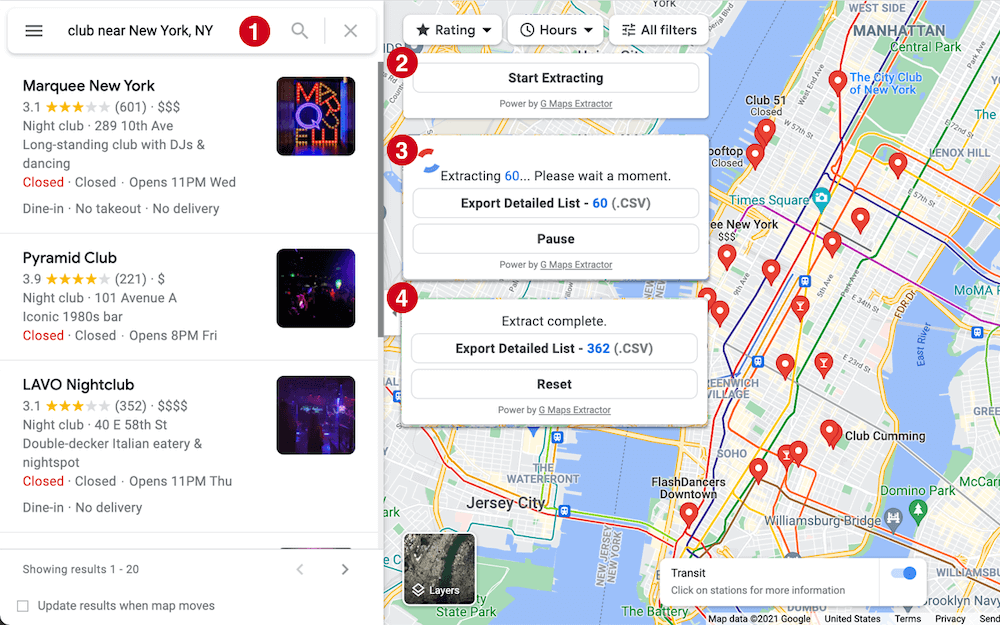
What Is the G Maps Extractor Browser Extension?
The G Maps Extractor browser extension helps you collect business information from Google Maps while you browse. Instead of copying listings one by one, you can search on Google Maps, run the extension, and export the results into a structured CSV file.
This workflow is best for users who want to stay inside Google Maps and visually check the search results before exporting them. For larger keyword jobs, bulk searches, or cloud processing, the Online Scraper is usually the better option.
What Data Can You Extract with the Browser Extension?
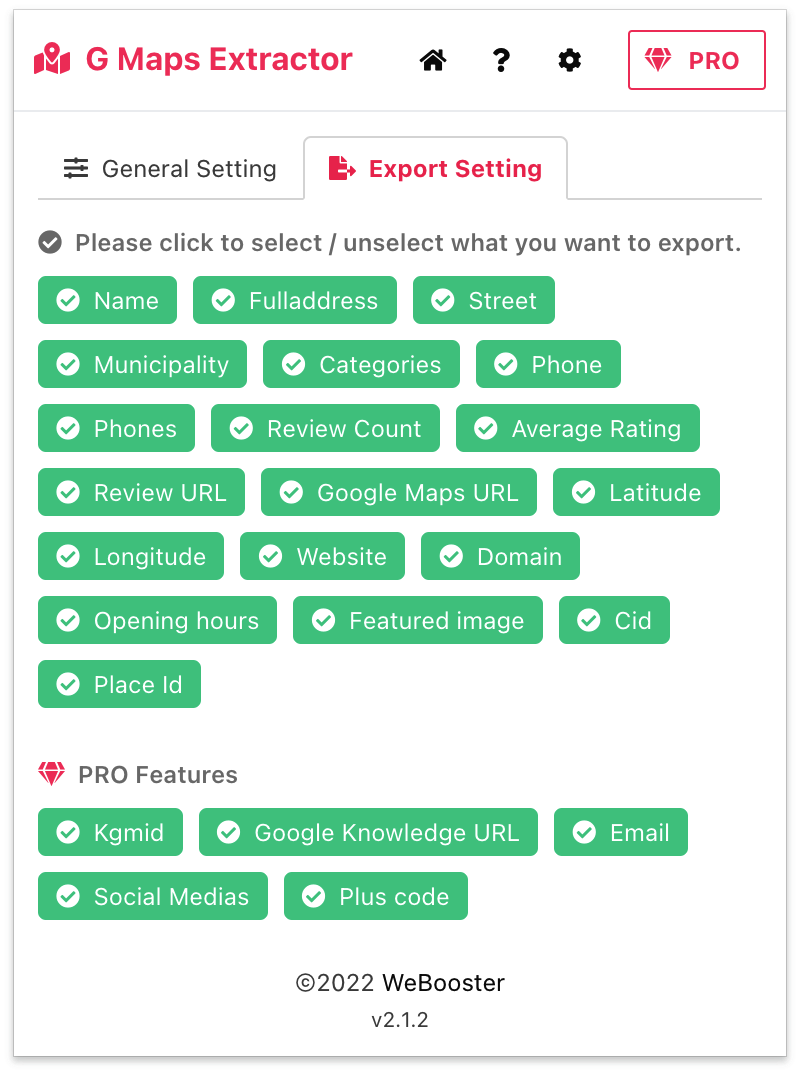
The browser extension can help you export useful business listing data from Google Maps, including:
- Business name - the name of the business or place listed on Google Maps.
- Address - the full business address, including street and city information when available.
- Phone number - the public phone number shown on the listing.
- Website - the business website linked from the Google Maps profile.
- Rating and review count - useful for local SEO research and competitor analysis.
- Category - the business type or category shown on the listing.
- Coordinates - latitude and longitude for location-based analysis.
- Email and social profiles - when they are available from public business websites or online sources.
When Should You Use the Browser Extension?
The browser extension is a good choice when you want to work directly inside Google Maps. For example, you may already be searching for “dentists in Chicago” or “restaurants in Austin” and want to export the visible business listings from that search.
Use the browser extension if:
- You prefer working inside Google Maps.
- You want to review the map results before exporting.
- You need a quick CSV from a search you are already running.
- You are working with smaller or more specific searches.
Use the Online Scraper instead if you want to run bulk keyword searches in the cloud without installing an extension. Use the API if you need JSON output, scheduled workflows, or CRM automation.
How to Extract Google Maps Data with the Browser Extension
Follow these steps to extract business data from Google Maps using the G Maps Extractor browser extension.
Step 1. Install the G Maps Extractor browser extension. You can follow the installation guide here: How to Install G Maps Extractor Browser Extension.

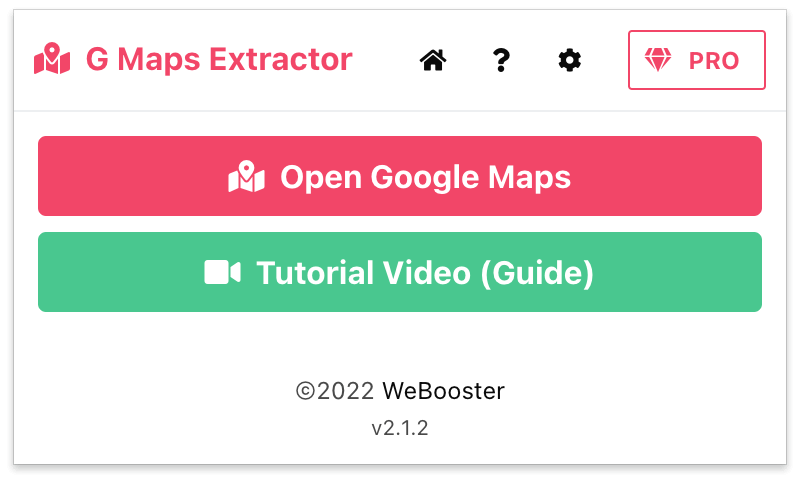
Step 2. Open the extension from your browser toolbar and sign in with your Google account.
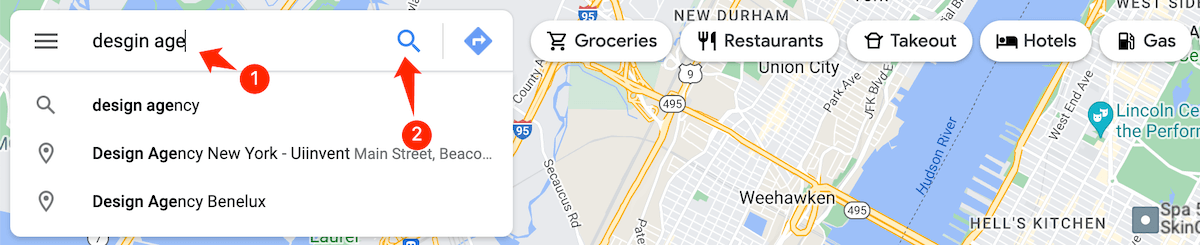
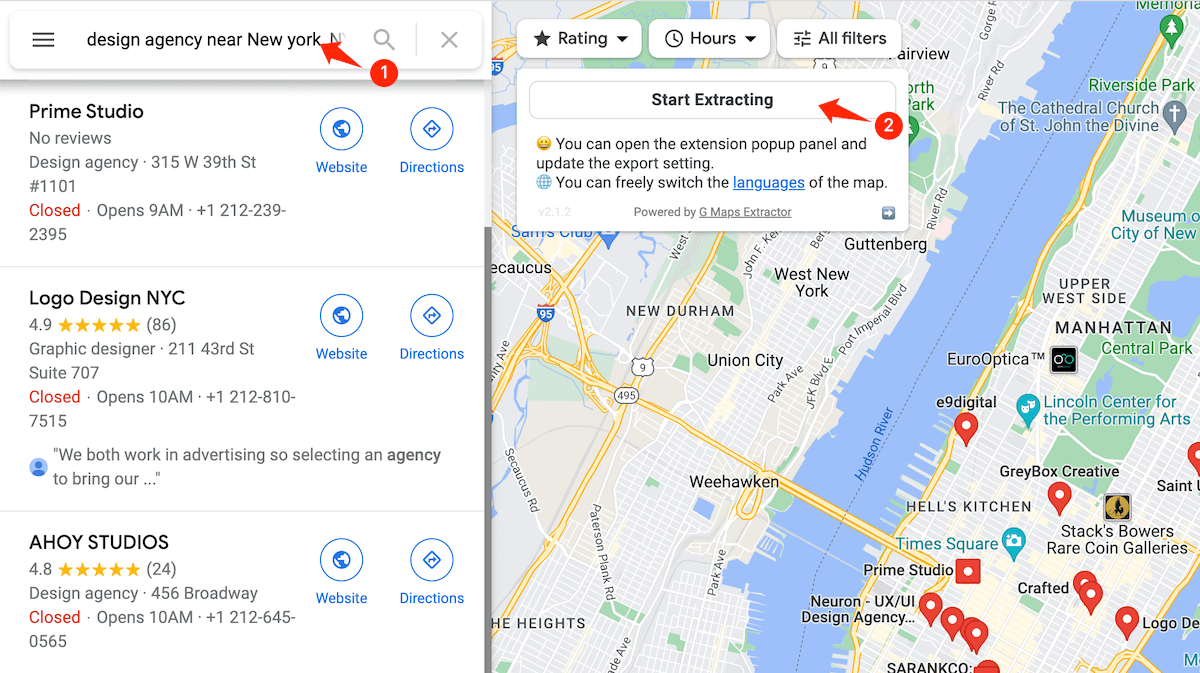
Step 3. Open Google Maps and search for the business type or location you want to collect. For example, you can search for “coffee shop in Portland”, “plumber in Dallas”, or “law firm in London”.
Step 4. Start the extraction from the extension popup. The tool will collect business information from the Google Maps results page.
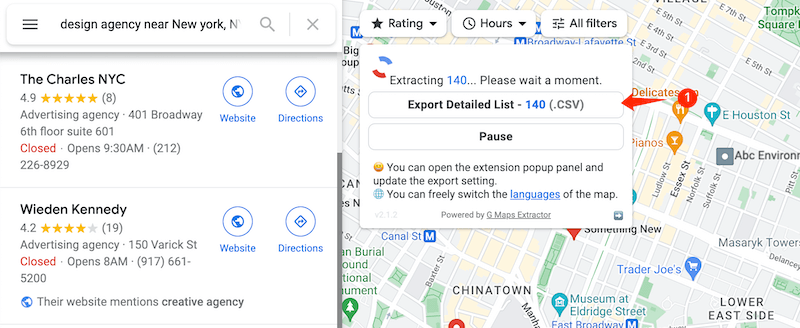
Step 5. When the extraction is complete, export the detailed list. The results can be downloaded as a CSV file and opened in Excel, Google Sheets, or imported into your CRM.
Browser Extension vs Online Scraper vs API
| Method | Best for | Output |
|---|---|---|
| Browser Extension | Working directly inside Google Maps | CSV |
| Online Scraper | No-code cloud scraping and bulk keyword searches | CSV |
| Google Maps Scraper API | Automation, CRM enrichment, SaaS, and JSON workflows | JSON |
If you only need a quick export from a Google Maps search page, the browser extension is a simple option. If you want bulk cloud scraping, use the Google Maps Scraper Online. If you need automation, use the Google Maps Scraper API.
Common Use Cases
- Local lead generation - build lists of businesses by category and city.
- Sales prospecting - collect phone numbers, websites, and addresses for outreach.
- Local SEO research - review competitors, ratings, categories, and listing details.
- Market research - understand businesses in a specific city or industry.
- CRM list building - export structured business records instead of copying listings manually.
Conclusion
The G Maps Extractor browser extension is useful when you want to extract Google Maps data while working directly inside Google Maps. It lets you search, collect business listing data, and export the results into a CSV file.
For small or visual searches, the extension is a good fit. For bulk keyword searches and cloud processing, use the Online Scraper. For JSON output and automation, use the Google Maps Scraper API.
Install Browser Extension | Use Online Scraper | View Google Maps Scraper API